Mistakes are painfull when they happen.
But years later collection of mistakes is called experience, which leads to SUCCESS.
But years later collection of mistakes is called experience, which leads to SUCCESS.

This article will show you how to use the remote shutdown command tool in Windows to remotely shut down, restart, or logoff a local or networked computer. This can be very useful sometimes if you have multiple computers at home or on your network that you want to quickly shutdown or restart.
You can perform a remote shutdown from the command prompt using the shutdown command and it’s associated switches, from the remote shutdown dialog box, or from a batch file. I’ll try to go through all three in this guide.
Firstly, in order to remotely shutdown a computer on your network, you’ll need to make sure you have Administrative access to that computer. If you’re on a home network, the best way to do this is to make sure all computers are in the same workgroup and that they all have at least one Administrator account with the same user name and password.
You can also have different Administrator account names across computers, but then you’ll need to make sure you add the Administrator account of one computer to the account list on the other computers. You’ll also need to know all the names of the other computers on the network. You can do that by going to Control Panel and then clicking on System. Then click on the Computer Name tab.
Remote shutdown is useful for managing multiple computers at once and especially useful for helpdesk technicians when they have to fix remote computers.
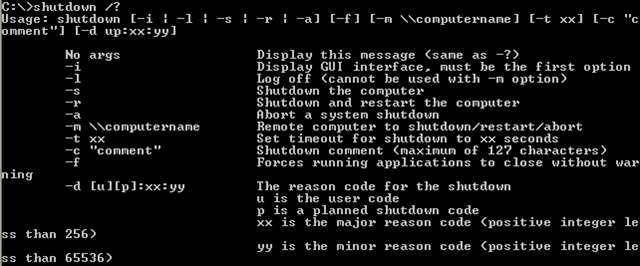
The shutdown command is most flexible when using it from the command prompt because you can add a bunch of switches to it, which allow you to customize the behavior. Go to Start, then Run, and type in CMD. In the black command window, type in shutdown /? to see the list of switches.
You have to use at least one switch in order for the command to do anything. Basically you would type in shutdown -X -Y -Z where X, Y, Z are letters in the list above.
Here are a couple of the most command switches and what actions they peform:
-l: Logs off the computer
-s: Shuts down the computer
-r: Restarts the computer
-m \\computername: remote shutdown of a computer
-f: Forces programs to close immediately
So for remotely shutting down another machine on your network, you would type into the command prompt the following commands:
shutdown –m \\computername –r –f
This above command will restart the computer named computername and force all programs that are still running to die.
shutdown –m \\computername –r –f –c “The computer will restart, please save all work.” –t 60
This command will restart the computer named computername, force all programs that are running to die, show a message to the user, and countdown 60 seconds before it restarts.
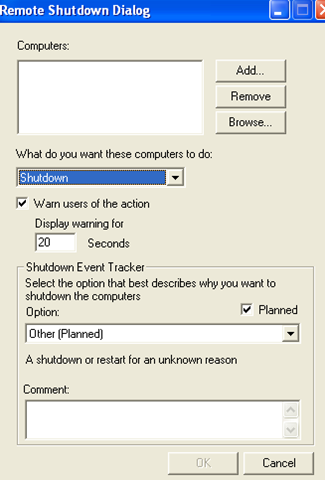
If you don’t like all those switches, etc, or using the command prompt, then you can bring up the shutdown dialog box. You can open the dialog window by clicking Start, click Run, type CMD and typing shutdown -i and in the blank DOS window.
A window similar to the one below will appear:
Click the Add or Browse button to add computers to the list. You can then run the commands on the entire batch of computers. If you click Add, you’ll need to enter in the network name of the computer in the format \\computername. You can even add your own computer to test it out and make sure it works.
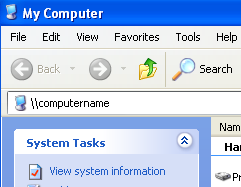
Of course, you need to know the actual computer name, which I mentioned how you can figure out above. You’ll also need Administrative access. You can determine this by going to My Computer and typing \\computername into the address bar and seeing if you can get access without having to be prompted for a password.
So add as many computers to the list as you like and then set your options. You can shutdown, restart, or logoff. You can also display a warning for however many seconds you like. You can type in a comment at the bottom which will be displayed to users. That’s it!
Finally, you can create a batch file so that you can do all of this by just clicking on a file! Or you can even schedule the batch file to be run at specific intervals using Windows Scheduler.
Just go to Notepad and type in the commands you would have typed into the command prompt:
shutdown –m \\computername1 –r
shutdown –m \\computername2 –r
shutdown –m \\computername3 –r
This will restart three computers on my home network. You would of course replace computername1 with the actual names of your computers. Then simple save the file with a .BAT file extension. You can put as many commands into the batch file as you like, so feel free to experiment!
I’ve written an extensive post on how to use batch files in Windows, so read that if you are not familiar with batch files. Enjoy!
There is an account in Microsoft Windows that is more powerful than the Administrator account in Windows Operating Systems. That account is called System account it is similar to the root OR super user in the Linux/Unix world . I will show you how to access this system account in this article.
You can use this facility for removing programs that are causing problems to your system, malware etc.
Introduction
If you look at the task manager (which can be launched by pressing [CTRL]+[ALT]+[DEL]) you will see some processes that are running with System level privileges. Even the Administrator account is unable to do some of the things a system account can do.
System is the highest account in Windows (like root),You can be a super power user by accessing the system account (even while you are logged in as a restricted user)
Note: Accessing system account may cause serious problems.
Leave this tread and don’t follow the rest of this topic
if you don’t know what you are doing. I am not liable for any problems caused by accessing the system account
Local system differs from an administrator account in that it has
full control of the operating system, similar to root on a Unix
machine. Most system processes are required by the operating
system, and cannot be closed, even by an administrator account;
attempting to close them will result in an error message.
In Windows NT and later systems derived from it (windows 2000,
Windows XP, Windows servers 2003 and Windows Vista), there may
or may not be a superuser. By default, there is a superuser named
Administrator, although it is not an exact analogy of the Unix
root superuser account. Administrator does not have all the
privileges of root because some superuser privileges are assigned
to the Local System account in windows NT/XP.
What you gain by accessing System account?
Local privilege escalation is useful on any system that a hacker
may compromise; the system account allows for several other
things that aren’t normally possible (you can reset passwords, resetting administrator passwords is also possible)
You can even login to System and lock administrator account out by
editing group policy or other tools in windows.
How to access System:
Note : Don’t follow the procedure bellow if you don’t know what you
are doing. You may harm your PC. If you follow, Do it on your own risk.
Am once again saying, don’t attempt accessing system account, unless you are an experienced Windows user.


Many times in the past I had to run an interactive command-line shell under the Local SYSTEM account. That is, a CMD window on your desktop running under the system account. This technique is extremely useful in many cases, for example to debug ERROR_ACCESS_DENIED type errors that are coming from a system service.
Let’s take a simple example to illustrate where running CMD as system would be useful. Let’s say that you write an ASP or ASP.NET application, configured to run under local system, without client impersonation. This application gets some weird E_ACCESSDENIED errors when invoking some COM objects (say that you are developing an ASP.NET layer on top of Visual Source Safe, for example).
One option to “debug” this is to attach a debugger to the ASP.NET working process, and attempt to figure out what goes wrong. But how would you debug COM calls, or even a failed CoCreateInstance? The “source code” for the COM infrastructure is not available. And even if you would be able to get access to this complex source code, there is a very high chance that you won’t understand what happens under the cover.
So, instead, here is a simpler solution: just start a CMD.EXE instance, running as local system (using one of the methods described below). Then, in this instance, try to execute an equivalent VB Script (or C++) code that does almost the same thing. You would probably get the same E_ACCESSDENIED but this time you are now able to fine-tune the COM security parameters, like specifying special settings through DCOMCNFG.EXE.
Anyway, let’s go back to the original issue – how to get “CMD.EXE” to run as the system account. Interactively. My first shot was to the RUNAS.EXE command. We already know that RUNAS allows you to run a process under a given user account. Unfortunately, RUNAS won’t work in our case, since a process running under an interactive logon session won’t be able to spawn a Local SYSTEM process. For security reasons, only a system process (that is already running as Local SYSTEM) like the SCM (services.exe) or RPCSS is allowed to spawn another system process.
After asking around, someone told me a quick-and-dirty solution that uses the AT.EXE command. AT can be used to spawn jobs at a certain point in time. What people don’t immediately realize is that these jobs run under the Local SYSTEM account. In fact, what happens under the cover is that AT creates a special Task in the Task Scheduler database. To complete the trick, AT allows tasks to run in “interactive” mode, i.e. the ability to interact with the desktop console (if active). In the end, to run a CMD through the AT.EXE command you must do two things:
1) Get the local time (through the TIME shell command, for example)
2) Add one minute to this time
3) Run the AT command with this new time.
4) Wait one minute for the command window to appear.
E:\Documents and Settings\Adi>time
The current time is: 16:29:00.96
Enter the new time:
E:\Documents and Settings\Adi>at 16:30 /interactive cmd.exe
Added a new job with job ID = 1
Well, this method looked pretty ugly to me. First of all is not scriptable. Second, it requires me to wait for one minute for the command window to appear. At last, the job remains there and needs to be cleaned up.
After this first shot, I started looking for simpler methods to show this command window. A nice start point was the SC.EXE command. If you are not already familiar with it, note just the fact that this is the standard utility for Windows Service related tasks: creating, deleting, enumerating services and their configuration details, etc.
My first attempt was to create an interactive service that just runs CMD.EXE. This didn’t work. I found out that when SCM starts a service, it waits a little for this new process to setup a communication channel (through the RegisterServiceCtrlHandler API). This channel is needed by SCM to send commands to the service.
E:\Documents and Settings\Adi>sc create testsvc binpath= "cmd" type= own type= interact
[SC] CreateService SUCCESS
E:\Documents and Settings\Adi>sc start testsvc
[SC] StartService FAILED 1053:
The service did not respond to the start or control request in a timely fashion.
But anyway, I succeeded to run CMD.EXE for a very brief period of time as Local System. After a couple of tweaks, I discovered the solution. You need to “convince” the original CMD.EXE process to spawn a separate CMD.EXE command window. Then, even if the original process dies, the other CMD.EXE instance will stay alive. Spawning a new CMD.EXE is very easy through the START shell command. In fact, just running START (with no parameters) from a CMD shell will start another window.
Let’s delete the original service and try again.
E:\Documents and Settings\Adi>sc delete testsvc
[SC] DeleteService SUCCESS
E:\Documents and Settings\Adi>sc create testsvc binpath= "cmd /K start" type= own type= interact
[SC] CreateService SUCCESS
E:\Documents and Settings\Adi>sc start testsvc
[SC] StartService FAILED 1053:
The service did not respond to the start or control request in a timely fashion.
Note that this time, the SC START immediately creates a new CMD window, even if the original CMD window failed to start with error 1053 (this is expected since CMD.EXE doesn’t have any service related code in it).
In the end, I would like to mention one more thing. You can use this new service to start as many CMD windows as you want, and you will get a new CMD window as soon as you do a “sc start testsvc” again.
Are you're using Internet Connection Sharing, but not satisfied with the results? You may try AnalogX Proxy server. It is very compact and easy to use. AnalogX Proxy is a small and simple server that allows any other machine on your local network to route it's requests through a central machine. Run Proxy on the machine with the internet connection and configure the other machines to use the Proxy Server. Supports all Windows Operating Systems.
AnalogX notifies you that the Proxy is in open mode, the first time when you use it. You need to change it to closed mode so that only your local network accesses this Proxy server.
Open AnalogX proxy main screen and type 192.168.0.1 in the Proxy Binding text box. See this dialog:
You need to perform the above steps in each client computer in the network. Now, everything is set and you can browse the internet from the client computer(s). For other applications apart from Internet Explorer, you need to configure the program to use the Proxy Server (if the program allows it).
Example: If you're performing a Symantec Live Update in a client machine, configure the Live Update interface to use the Proxy Server. Same for any Instant Messengers you might use.
| List of Services supported by AnalogX and their Port Numbers | ||
| Services | Description | Port Number |
| HTTP | Browsing the internet | 6588 |
| HTTPS | Browsing the internet (secure) | 6588 |
| SOCKS4 | TCP proxying | 1080 |
| SOCKS4a | TCP Proxying with DNS lookups | 1080 |
| SOCKS5 | 1080 | |
| NNTP | Usenet Newsgroups | 119 |
| POP3 | Incoming email | 110 |
| SMTP | Outgoing email | 25 |
| FTP | File Transfer | 21 |
From AnalogX main screen, you may turn OFF unwanted services by disabling the appropriate buttons. This affects all the client computers and not the computer which shares the Internet. (Example: Disabling HTTP service turns OFF browsing in all client machines. Rest all services work)



![computer name[6]](http://www.online-tech-tips.com/wp-content/uploads/2008/05/computer-name6.png)